Paper Jam or No Feed? How to Fix Issues With the Paper Tray
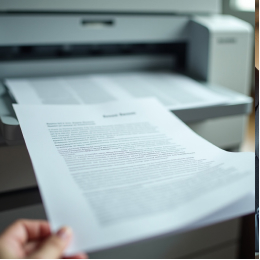
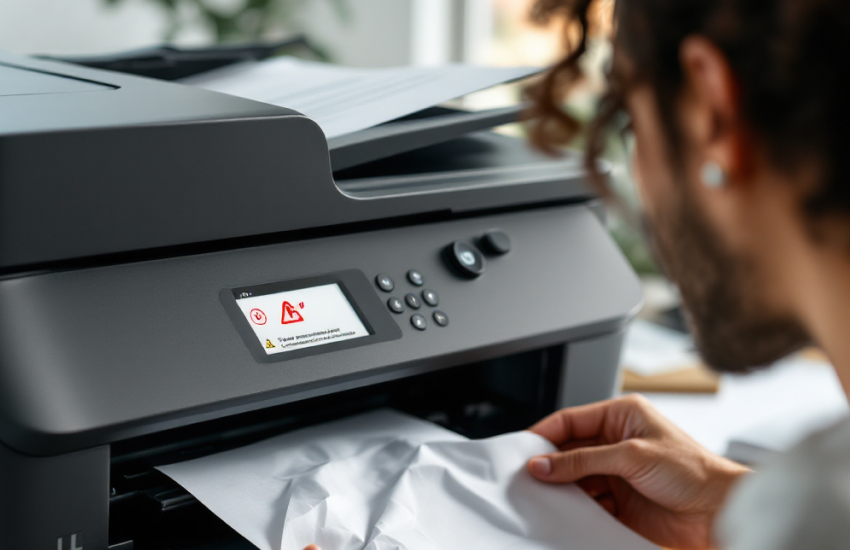
As annoying as it is to press "Print" and hear nothing, or even worse, to hear your printer struggling before showing a paper jam mistake. One of the most common printer problems is a broken paper tray. This can stop your work, whether you're printing at home, school, or work. Most of these problems can be solved with a few easy checks and changes, though. Here are some things that might be wrong and ways to fix them so that your printer can feed paper again without any problems.
1. Figure out what's wrong: is there a jam or no feed?
Find out what is happening first before you try to solve the problem.
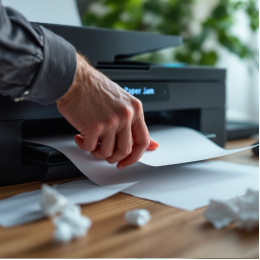
- Paper jam: The paper goes into the printer but gets stuck or squished somewhere along the way.
- No Feed: The printer tries to print, but it doesn't get any paper. It might say "No Paper" or "Load Paper" even if the tray is full.
It's easier to find the right fix when you know what the problem is.
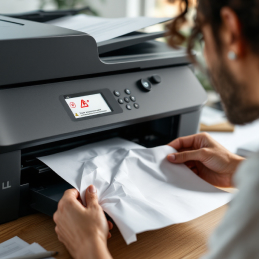
2. Carefully take out any paper that is stuck.
If there's a clear jam:
- Do not plug in or turn on the printer.
- Open all access doors carefully, whether they are on top, in the back, or on a tray.
- Slowly pull out any paper that is stuck. Do not tear it.
- Look for any small pieces that were left behind.
Tip:
Don't quickly pull out paper that is stuck; it could damage the rollers or sensors inside.
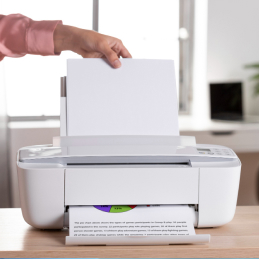
3. Reload the paper the right way
To fix problems with the paper feed,
- Take out all of the paper from the tray.
- Divide the stack to keep the pages from sticking together.
- Print on clean, flat, letter-sized paper.
- Line up the stack neatly and make sure the paper guides are just snug enough.
One of the main reasons for feed problems is paper that isn't put in or aligned correctly.
4. Check the type of paper and its condition
Printers can tell what kind of paper you use by how well it is made.
Avoid:
- Sheets that are folded or bent
- Putting together stacks of different sizes
- Types of paper that are damp, dirty, or of poor quality
Only use the sizes and types of paper that come with your printer.
5. Clean the rollers for the paper (if you can).
The rollers that grab the sheets can lose their grip over time if dust and small pieces of paper get on them.
If your printer lets you,
- Open up the tray.
- Wet a lint-free cloth just a little with water.
- Before you use them, wipe the rollers down gently and let them dry well.
Important:
If your printer's manual doesn't say to, don't use alcohol or strong cleaners.
6. Start over and test
After being cleaned and loaded again:
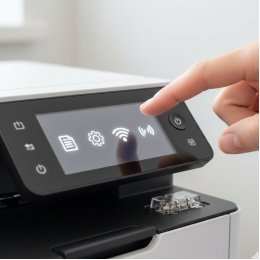
- Connect your printer again.
- Turn it on.
- Print a test page first.
You're good to go if everything works!
Avoid these common paper tray mistakes:
- Keep the tray from getting too full
- Disregarding creased or broken sheets
- Leaving bits of paper inside after a jam
- Not adjusting the paper lines
- Stacks of old and new paper together
- Using different sizes of paper
Advice for the Future to Avoid Tray Problems
- Keep your paper flat and dry to keep it from getting wet or curled.
- Sometimes, clean the tray area to get rid of dirt and other things.
- Always line up and fan out the paper before adding it.
- Don't fill the tray all the way to the top.
- Check for printer updates or notes that say the feed rollers need to be replaced.
To print without stress, you need a paper feed that is smooth. If you know how to handle your paper correctly and check it often, you can escape most jams and feeding issues. Contact us if your printer keeps getting stuck or won't feed paper if it keeps getting jammed. We can send you more troubleshooting tips that are simple and easy to follow.