Need a new printer? Set It Up Without Losing Your Mind
It can be exciting to bring a new printer home or take it out of the box, but only until you start setting it up. It's easy to get annoyed with all the wires, blinking lights, drivers, and connection problems. It doesn't have to be hard to set up your printer, though. It's easy to get your printer up and going if you take your time and follow the right steps. This guide explains everything in simple terms so that you can easily set up your new gadget at home, at work, or for school.
1. Unpack And Get Everything Ready To Go
Carefully take your printer out of the box and set it down on a flat, stable surface close to your computer or Wi-Fi router. Take off all the tapes, protective materials, and boxes that are on or inside the printer. This includes the cardboard or plastic guards that are in the tray and cartridge slots.
- Take away all the boxes
- Make sure you have a power cord, ink or toner, and the instructions.
- Put it close to your computer or device.
- Hold on to the printer manual for steps that are special to your model.
2. Put In The Toner Or Ink Cartridges
Most printers come with starter cartridges. Open the printer's cartridge door the way it says to in the instructions or on the sticker. Carefully put the toner or ink cartridges into the holes that are marked for them. For safety, make sure they click into place.
As a helpful hint,
don't touch the copper-colored needles or contacts. To keep them from getting smudged or broken, hold cartridges by the sides.
3. Put the paper in the right way
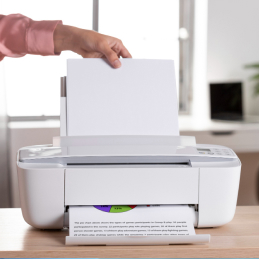
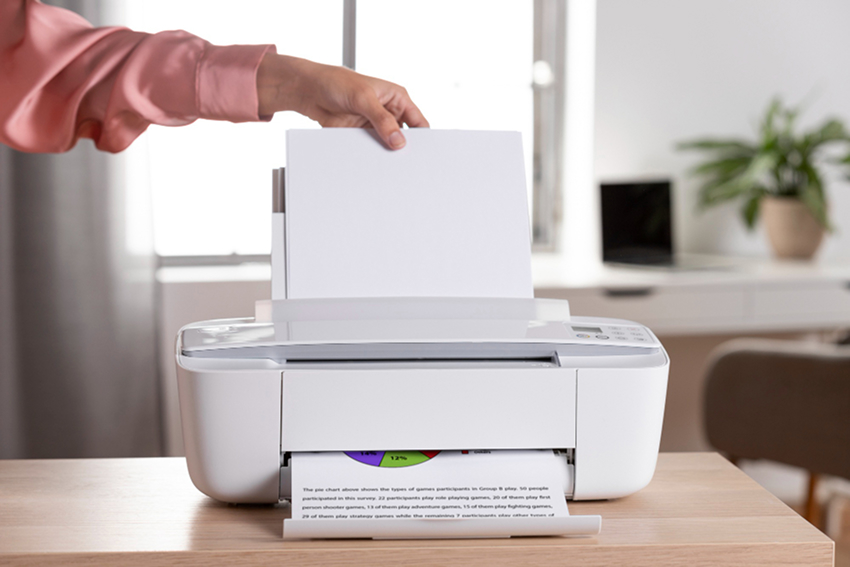
Open the paper tray and put in flat, clean sheets of paper. Set the paper guides so that the stack is straight, but not too close together. One of the most common reasons for paper feed mistakes later on is that the paper is not lined up correctly.
Remember to use letter or A4-sized paper unless your printer is set up to handle other sizes.
4. Turn It On And Start Setting It Up
Turn on the printer and plug it into the wall. On some printers, the screen will start a setup process or ask you to load software on your device. Wait for any alignment or correction that is done automatically to finish.
5. Select Connection Type
You can either connect your printer to a desktop or laptop via a USB cable, depending on the type of printer you have. To join without wires, use Wi-Fi or Bluetooth.
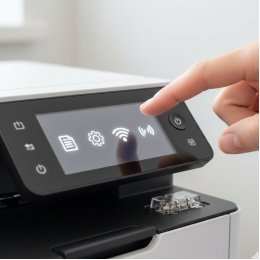
If you're using Wi-Fi, go to Wi-Fi Setup or Network Settings on the printer's screen. Pick your Wi-Fi name and type in the right password. This makes your printer and computer part of the same network.
6. Set Up The Software For The Printer
Find your printer type by going to System Settings > Printers & Scanners on your computer or phone. If it doesn't show up immediately, look for the printer model name in your device's printer settings and install the driver that way. To finish the process, follow the steps shown on the screen.
As a helpful hint,
make sure that the running system on your laptop or PC works with the model of printer you're using.
7. Print a Test Page
After setting up, send a quick test page to make sure everything is working. This is something you can change in your printer settings. As long as the page prints, you're good to go!
8. Make it your main printer
In the print settings on your device, make your new printer the default. This way, print jobs won't go to the wrong device, like a PDF converter. This keeps things clear, especially if there is more than one printer mentioned.
Avoid These Common Setup Mistakes:
- Skipping software installation
- Connecting to the wrong Wi-Fi network
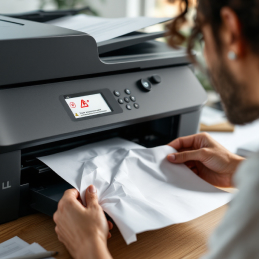
- Putting in curled or wet paper
- Forgetting to take the packaging out of the printer
- Not finishing the step of aligning
- Choosing the wrong printer when setting up
Future Smooth Printing Tips:
- Update the software and drivers on your printer.
- Print a test page every week to keep the ink from running out.
- Keep your printer away from water and bright sunlight.
- For the best results, use the type of paper that was suggested.
- If you have more than one Wi-Fi network at home or at work, clearly label each one.
It doesn't have to be hard to set up a new printer. You'll be able to print easily in no time if you're patient and follow the right steps. If you don't understand something along the way, you can always call us for clearer printer instructions. Make sure that your first print goes well. You can do this!