
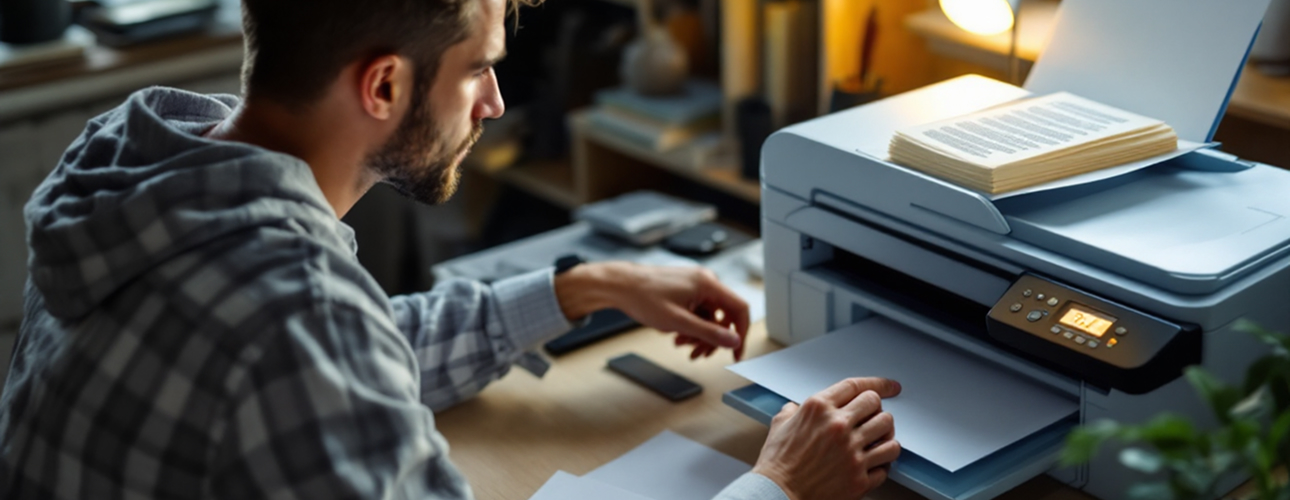
Printer Setup Trouble
Why it takes place: It can be hard to set up a printer, whether it's brand new or has been changed. Problems usually happen when you don't load all of the drivers or pick the right port or Wi-Fi network, when your device isn't fully compatible, or when you skip steps during setup. Users also sometimes pick the wrong printer from the list of devices by mistake, which causes extra confusion.
How to Make It Work Right: Follow the steps in the printer's instructions or on the screen one at a time. Make sure you use the right type of link (USB, Ethernet, or Wi-Fi) and install the driver that works with your printer. Set it as your usual printer after connecting it so that jobs don't go to the wrong device.
Important Notes:
- Before connecting the printer, install the drivers
- Don’t use both Wi-Fi and USB — choose one and stick with it
- When printing, select the correct printer name
- Don’t skip the setup steps shown on the screen
- Make sure your device is compatible with your operating system
- If the setup gets stuck, restart both the printer and the device
Future Tip: Keep the quick-start guide close by and put all of your software files in one place. Check the setup steps again if you change networks or update your device to make sure everything works right.
Wireless Issue
Why It Happens: Printers that are wireless often have trouble connecting. Disconnections can happen because of weak Wi-Fi signals, changes to the network, bad passwords, old hardware, or interference from devices nearby.
How to Make It Right: Make sure your printer is on the right network by putting it close to the router. If you need to, you can reconnect by hand using the control panel. Carefully enter your Wi-Fi password again, restart your router, and check the printer's state screen to make sure the connection is still good.
Important Notes:
- Keep the printer close to your Wi-Fi network
- Check your Wi-Fi password again
- Avoid guest networks to get full access
- Update the software for better stability
- Reduce interference from other devices
- Make sure the printer and computer are on the same network
Future Tip: Make sure your Wi-Fi network is easily named, and don't change its name or password too often. If you change the settings, make sure to restart the printer right away to avoid any downtime.
Issues with Paper Feed
Why It Happens: The most common reasons for paper jams or feed mistakes are overloaded trays, sheets that are bent or dirty, and rollers that are dirty or worn out. This can lead to paper jams or feed mistakes. Misfeeds can also happen when you use paper that doesn't meet the printer's requirements.
How to Fix It: Take out all the sheets and look for paper that is stuck or torn. Put in new, flat paper and make sure it's lined up right and not too full. Always use the type and size of paper that came with the rollers and clean them gently.
Important Notes:
- Do not put too much paper in the tray
- Use paper that is clean and flat
- Ensure the paper stack is properly aligned
- Check the rollers for any signs of dirt or wear
- Use paper that is compatible with your printer
- Close the trays completely before printing
Tip for the Future: Keep the paper in a dry place and clean the feed line often. Before you start a big project, make sure you have enough paper, and always use good paper for the best results.
Trouble with INK and Alignment
Why it takes place: If pictures are faded, blurry, or not lined up right, it's likely that the ink or alignment is off. Low cartridges, clogged nozzles, expired ink, or cartridges that aren't set properly are all common reasons for this. Not using the right ink can also lower the grade.
How to Make It Right: After making sure there is enough ink, run a cleaning cycle and then line the printhead. Make sure the refills are in the right way and haven't passed their expiration date. If you use ink from a different company, make sure it works with your model.
Important Notes:
- Check the ink levels often
- Run alignment processes when needed
- If prints are streaky, clean the nozzles
- Always use compatible cartridges
- Do not use expired ink
- Print test pages to confirm the fixes
Future Tip: Print often to keep the ink moving and keep the nozzles from getting clogged. Keep cartridges standing up in a cool, dry place, and get new ones as soon as the print quality starts to get bad.